
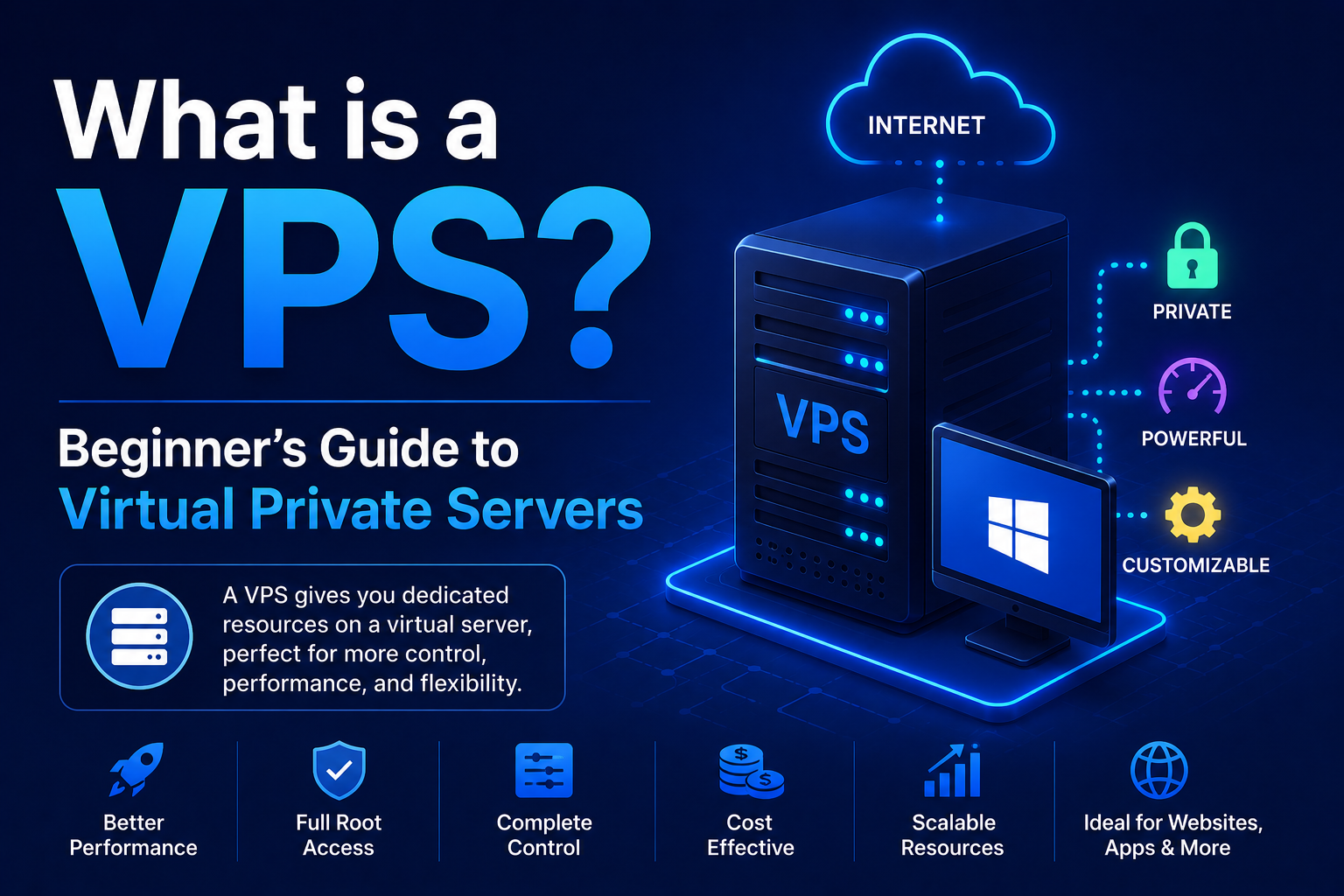
What is a VPS? Beginner’s Guide to Virtual Private Servers
A VPS (Virtual Private Server) is your own slice of a powerful server in a datacentre, accessed over the internet, available 24/7, and fully under your control. This guide explains everything from scratch: what a VPS is, how it works, what it’s used for, and how to get started.
or Win
01What is a VPS?
A VPS (short for Virtual Private Server) is basically a virtual machine living in a datacentre that you rent by the month. It’s always on, always connected, and you can access it from anywhere with an internet connection.
Here’s how to picture it: imagine a big, powerful physical server split into lots of smaller virtual machines using something called a hypervisor. Each one of those virtual machines gets a guaranteed slice of the server’s CPU, RAM, and storage. You rent one of those slices. That’s your VPS.
The “Private” part matters. Unlike shared hosting, where hundreds of websites are all crammed onto the same machine fighting for resources, your VPS resources are yours alone. Your neighbour’s site getting hammered with traffic won’t slow you down. Your RAM stays your RAM.
Think of it like an office building
Lots of businesses renting individual offices in the same building. Each one has its own locked door, its own keys, its own space. They share the building’s power and internet, but they can’t wander into each other’s offices.
That’s exactly how a VPS works
A physical server runs many VPS instances side by side. Each one has dedicated CPU, RAM, and storage, completely isolated. The host server handles power, cooling, and connectivity. You only ever see your own VPS.
02How Does a VPS Work?
The magic behind VPS is called virtualisation. A layer of software (the hypervisor) runs on the physical server and carves it up into multiple isolated virtual machines. Each one behaves like a completely independent server.
The hypervisor does the heavy lifting
The hypervisor sits between the hardware and the virtual machines, handing out CPU time, RAM, disk space, and network bandwidth to each VPS. It also makes sure they can’t mess with each other. The big names you’ll see are KVM, VMware ESXi, and Microsoft Hyper-V.
KVM is the most common in the VPS world. It’s open-source, fast, and gives performance that’s close to bare metal. Providers like Hetzner, DigitalOcean, Vultr, and Contabo all use KVM.
What you actually get with a VPS
- Root / Administrator access – full control over the OS, like you own the physical box
- A fixed public IP – your VPS has its own permanent address on the internet
- Your pick of operating system – Linux (Ubuntu, Debian, CentOS) or Windows, either from the provider’s images or your own
- Dedicated resources – your CPU and RAM allocation is yours, not shared (on most plans)
- SSH or RDP – connect from anywhere, whether you’re on Linux (SSH) or Windows (Remote Desktop)
- Persistent storage – your files stay put across reboots, just like a normal computer
Most budget VPS plans (like Hetzner CX or DigitalOcean Basic) use shared vCPUs. Your virtual CPU cores are shared with neighbours during busy periods. Dedicated vCPU plans give you exclusive cores, like Hetzner CCX or DigitalOcean CPU-Optimised. For most people, shared is perfectly fine. Go dedicated if you’re running heavy CPU workloads continuously.
04What Do People Actually Use VPS For?
Honestly? Almost everything. Here are some of the most popular uses and why a VPS is often the perfect fit.
Remote Windows desktop (RDP)
Spin up a Windows VPS and you’ve got a full Windows machine accessible from anywhere via Remote Desktop. Use it as a remote work PC, run Windows-only software, or keep programs running 24/7 while your own computer is off.
Hosting websites and apps
Run websites, web apps, APIs, or databases with full control over your stack. Unlike shared hosting, there’s no one telling you what you can or can’t install. PHP, Node.js, Python, Ruby, whatever you need.
Game servers
Minecraft, Valheim, CS:GO – any multiplayer game server runs great on a VPS. You get a fixed IP and 24/7 uptime, and you don’t have to leave your own PC running overnight.
Private VPN server
Roll your own VPN for secure, encrypted browsing. No third-party provider, no logs, no surprises. Your traffic routes through your VPS in whatever location you choose.
Bots and automation
Run trading bots, Discord bots, web scrapers, or scheduled tasks around the clock. Your VPS keeps chugging along even when your laptop is shut.
Dev and testing environments
Spin up a clean environment for development or testing. Take a snapshot when it’s all configured, and restore instantly if something breaks. Pay by the hour and delete it when you’re done.
05Linux vs Windows VPS: Which One Should You Pick?
When you fire up a VPS, the first big decision is the operating system. Most providers only offer Linux out of the box, but with OS Installer, you can deploy Windows on any Ubuntu 24.04 VPS in a few clicks.
| Feature | Linux VPS | Windows VPS |
|---|---|---|
| Available from providers | All providers by default | ◑ Rarely, use OS Installer to deploy |
| Cost | Just the VPS cost ($4+/month) | VPS cost + Windows licence (or use evaluation) |
| Remote access | SSH terminal | RDP (full Windows desktop) |
| Ease of use for beginners | Requires command-line knowledge | Familiar desktop, no CLI needed |
| Run Windows software | Not natively | Yes, any Windows app |
| Web servers, databases | Excellent, industry standard | IIS, MSSQL, etc. |
| Install with OS Installer | Start on Ubuntu 24.04, OS Installer converts to Windows | Automated, Win 10, 11, Server 2022/2025 |
The best-value VPS providers (Hetzner, Contabo, Vultr) don’t offer native Windows. OS Installer bridges the gap: create any Ubuntu 24.04 VPS, point OS Installer at it, and it automatically installs Windows 10 Pro, Windows 11 Pro, Windows Server 2022, or Windows Server 2025. See how it works →
06How to Choose a VPS: Key Specs Explained
Shopping for a VPS can feel like reading a foreign language if you’re not familiar with the specs. Here’s what matters, and how much you actually need.
- vCPU (virtual CPU cores) – This is your processing power. More cores means better multitasking. For a basic web server or RDP session, 2 vCPU minimum. For heavier workloads, go 4+.
- RAM (memory) – This is the biggest performance factor. For a Linux server, 1-2 GB is usually fine. For a Windows VPS, you want 4-8 GB minimum for a comfortable experience. Don’t skimp here.
- Storage / Disk – Where your OS, files, and databases live. Modern VPS plans use NVMe SSD (blazing fast) or SATA SSD. Avoid anything with HDD storage. It’s slow and ancient. For Windows, 60 GB minimum.
- Bandwidth / Traffic – How much data you can transfer each month. European providers like Hetzner give you generous 20 TB/month. US providers usually offer 1-5 TB. For most people, even 1 TB is more than enough.
- Location / Region – Where the physical server lives. Closer to you means lower latency, especially for RDP sessions. Pick a datacentre in your country or region if you can.
- Shared vs Dedicated vCPU – Shared vCPU plans are cheaper, but CPU resources are shared during peak times. Dedicated plans guarantee exclusive cores. For most use cases, shared is perfectly fine.
07Best VPS Providers for Beginners (2026)
These are the most reliable, beginner-friendly VPS providers out there, and they all work with OS Installer for Windows deployments:
If you’re just starting out, DigitalOcean has the slickest dashboard and best documentation. It’s built with beginners in mind. Hetzner gives you the most bang for your buck if you’re in Europe. Contabo throws in a ton of RAM for the price, which is great for Windows VPS.
All of these let you spin up Ubuntu 24.04 as a base image, which is all you need to deploy Windows with OS Installer. Sign up, create a VPS with Ubuntu 24.04, and let OS Installer handle the rest.
08How to Get Started with Your First VPS
Getting your first VPS running is easier than you might think. Here’s the whole process, from zero to a working server in a few minutes.
Pick a provider and sign up
Choose any provider from the list above. Creating an account takes two minutes. You’ll need to add a payment method, card or PayPal. Most providers charge hourly and bill monthly, so you can delete a server anytime and stop paying immediately.
Create your VPS with Ubuntu 24.04 LTS
Click “Create Server” (or “Create Droplet” on DigitalOcean). Pick Ubuntu 24.04 LTS as the OS. For a Windows VPS, go with at least 4 GB RAM and 60+ GB storage. Choose a region close to you. Set a root password and save it somewhere safe.
Linux or Windows? Your call.
Sticking with Linux? Connect via SSH (ssh root@YOUR_VPS_IP) and start tinkering. Want Windows instead? Head to OS Installer, pop in your VPS IP and root password, pick your Windows version, and hit Install. It does everything automatically.
Connect and go
Linux: SSH in with ssh root@YOUR_VPS_IP from Terminal or PuTTY. Windows: Open Remote Desktop (mstsc on Windows, Microsoft Remote Desktop on Mac/iOS/Android), enter your VPS IP, username Administrator, and your password. That’s it. You now have a full Windows computer in the cloud.
09Frequently Asked Questions
Do I need technical knowledge to use a VPS?
Depends on what you’re doing. A Linux VPS means getting comfortable with the command line. You’ll need to SSH in and run commands. A Windows VPS is way more beginner-friendly. You connect via Remote Desktop and get a familiar Windows desktop, just like using a normal PC. With OS Installer handling the Windows install automatically, even total beginners can get a Windows VPS up and running.
What’s the difference between a VPS and a cloud server?
Honestly? These days, most people use them interchangeably. Technically, a cloud server usually means a VM you can resize, snapshot, and manage via an API or dashboard, like DigitalOcean Droplets or Hetzner Cloud Servers. A VPS is the older term for basically the same thing. Both give you a virtual machine with dedicated resources running in a datacentre.
Can I run Windows on a VPS?
Yes, but most VPS providers only offer Linux images out of the box. OS Installer fixes that. It automatically installs Windows 10 Pro, Windows 11 Pro, Windows Server 2022, or Windows Server 2025 on any Ubuntu 24.04 VPS. You just enter your server IP and password, pick a Windows version, and it handles the rest: drivers, bootloader, RDP setup, everything. The whole process takes under 45 minutes.
How much does a VPS cost per month?
Entry-level VPS plans start around $4-6/month. For a Windows-ready VPS (4 GB RAM, 60+ GB NVMe, 2 vCPU), you’re looking at roughly $8-24/month depending on the provider. Hetzner CX32 (around €8.50/month) is the best value for Windows deployments. DigitalOcean’s 4 GB Droplet is $24/month, but it has a much nicer dashboard and better documentation for beginners.
What happens to my VPS if I turn off my computer?
Nothing. Your VPS keeps humming along. It’s hosted in a professional datacentre with its own power and internet connection, completely independent of your personal computer. This is one of the big advantages of a VPS. It stays on 24/7, so you can run bots, servers, or applications that need to be available even when you’re asleep.
Is a VPS the same as a dedicated server?
No. A dedicated server gives you an entire physical machine all to yourself, no virtualisation, no sharing hardware with anyone. A VPS is a virtual slice of a physical server shared among multiple customers, with dedicated resource allocations. Dedicated servers give you more raw power and consistent performance, but they cost a lot more ($50-500+/month vs $4-50/month for a VPS). For most people, a VPS offers more than enough performance at a fraction of the cost.
Get a Windows VPS Running in Under 45 Minutes
Pick any Ubuntu 24.04 VPS from any provider. OS Installer automatically deploys Windows 10 Pro, Windows 11 Pro, Windows Server 2022, or Windows Server 2025. Drivers, RDP and all, no technical knowledge required.
Install Windows on a VPS Now